Remote Monitoring Smartwatch Setup Guide for Stress-Free Daily Check-Ins
⏱ 7 min read
Does a remote monitoring smartwatch really make daily check-ins stress-free?
Answer: A remote monitoring smartwatch pairs with a remote monitoring app and a parent gps tracker app to provide live location, activity summaries, and SOS alerts—so caregivers get fast reassurance and can prevent lost situations. Set up takes minutes and delivers real-time peace of mind for busy families.
Worried about quick check-ins while juggling errands, work, and bedtime routines? A remote monitoring smartwatch can turn constant worry into predictable, simple check-ins. This guide shows you how to pair the watch with a remote monitoring app and a parent gps tracker app, set safe zones, use SOS features, and get the most from your device—step by step.
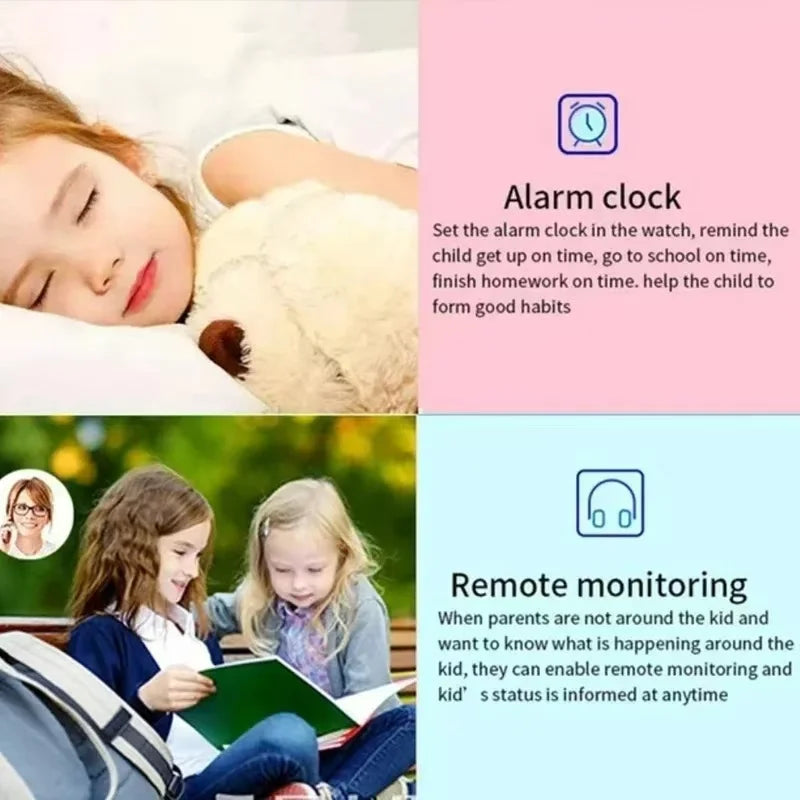
remote monitoring smartwatch + remote monitoring app — 💡 See it in action
Why a remote monitoring smartwatch helps busy caregivers
Parents and caregivers want fast, reliable updates without interrupting a nap, a grocery run, or a work call. A remote monitoring smartwatch delivers quick glances at location, battery level, and activity—helping prevent lost situations and reducing low-level anxiety that builds across the day.
Top benefits at a glance
- Real-time location checks via a parent gps tracker app.
- Custom alerts (safe zones, low battery, SOS) to avoid surprises.
- Hands-free, quick reassurance during busy moments.
- Simple routines: quick set-and-forget settings for sleep, school, and play.
Quick setup: from unboxing to first check-in
Direct answer: The remote monitoring smartwatch pairs with its remote monitoring app using a QR or activation code, adds the guardian account in the parent gps tracker app, and configures Safe Zones and SOS in under 15 minutes. Keep the watch charged and tested every week.
- Charge the watch fully. Unbox and charge the watch until the indicator shows 100%.
- Install the remote monitoring app. Download the designated app on your phone and create a guardian account.
- Pair the device. Scan the watch QR or enter the activation code inside the app’s “Add Device” section.
- Grant permissions. Allow location, notifications, and contacts so the watch can alert guardians properly.
- Test a check-in. Use the app to request location, trigger a sound on the watch, and confirm SOS calls.
Quick checklist (printable)
- Watch charged & SIM active (if required)
- App installed and logged in
- Safe Zone and contact numbers configured
- Weekly test scheduled on calendar
Make daily check-ins part of your routine (MOFU)
Short, repeatable habits reduce friction. Here’s a simple routine you can adopt today.
- Morning: Confirm watch battery and last night’s activity summary.
- Before leaving home: Quick location ping and confirm Safe Zone settings.
- Afternoon: Spot-check location after daycare pickup or playdates.
- Evening: Check last known location and set Do Not Disturb on the watch if needed.
Key safety features and how to configure them
Most remote monitoring smartwatches include location history, real-time tracking, SOS button, two-way voice, and safe-zone geofencing. Proper configuration turns features into practical protection.
How to configure Safe Zones
- Open the parent gps tracker app and choose “Safe Zone” or “Geo-fence.”
- Drop a pin around home, daycare, or grandparent’s house—set a radius that fits actual pathways, not just the property line.
- Turn on entry/exit notifications and specify who receives alerts.
Setting up SOS and emergency contacts
- Program 2–3 emergency contacts in order of priority.
- Test the SOS sequence once a week, then again after any updates.
- Label contacts clearly (e.g., “Mom — Mobile 555-1234”).
Common problems and quick fixes
Below are typical hiccups and how to solve them fast.
- Location lag: Make sure the watch has an unobstructed view of the sky outdoors and cellular/data is enabled.
- Battery drains fast: Reduce continuous tracking frequency, disable unused features, or set low-power modes.
- No notifications: Check app permissions on your phone and enable background refresh.
- Watch offline: Confirm SIM/data plan and test signal strength in the watch’s location.
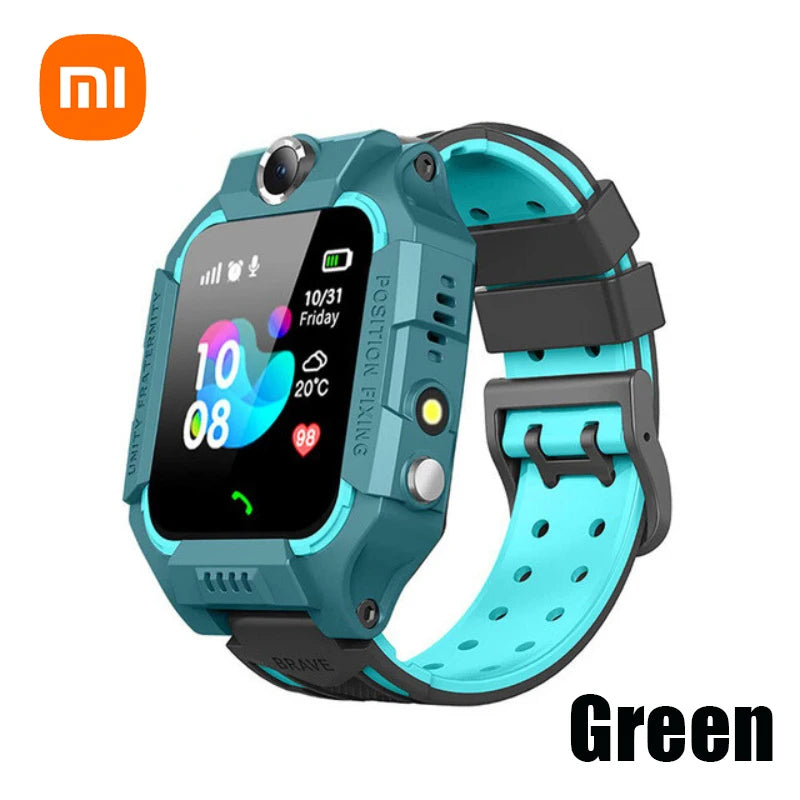
remote monitoring app + parent gps tracker app — 💡 See it in action
Compare setup options and pick the right plan
Choosing between device-only tracking, app pairing, and full subscription plans depends on how often you check in and whether you want advanced features like unlimited history or cloud alerts.
| Option | Best for | Pros | Cons |
|---|---|---|---|
| Device-only (no subscription) | Occasional check-ins | Low cost, basic tracking | Limited history, fewer alerts |
| App + Basic Plan | Weekly checks and alerts | Real-time pings, Safe Zones | Monthly fee, limited cloud history |
| Full Plan (premium) | Daily monitoring, shared family access | Detailed history, priority support, geofence rules | Higher cost |
What to choose based on needs
- Pick device-only if budget is tight and you only need occasional checks.
- Choose App + Basic when you want reliable alerts without heavy cost.
- Upgrade to Full Plan if you rely on continuous monitoring or have multiple guardians.
Want a practical starting point? For everyday family use, pairing the watch with a moderate monthly plan gives the best balance of timely alerts and cost.
Best practices for long-term success
Small habits protect the device and preserve the value of the system.
- Label the watch clearly with contact info inside the strap in case it gets found.
- Schedule a weekly device check: battery, signal, and last known location.
- Teach older children how and when to press the SOS button, emphasizing safety without fear.
- Keep the guardian list up to date: add babysitters or grandparents when they’ll be responsible.
To explore compatible devices and accessories that fit family life, check our Monitoring Devices collection and Smart Baby Gadgets for complementary tools like protective bands and chargers. For sleep-friendly settings and comfort gear, explore Sleep & Comfort.
Product spotlight: the Kids 4G Smart Watch (GPS + SOS + Camera) integrates easily with most parent gps tracker apps—perfect for caregivers who want a single solution with voice, location, and SOS. See the Kids 4G Smart Watch.
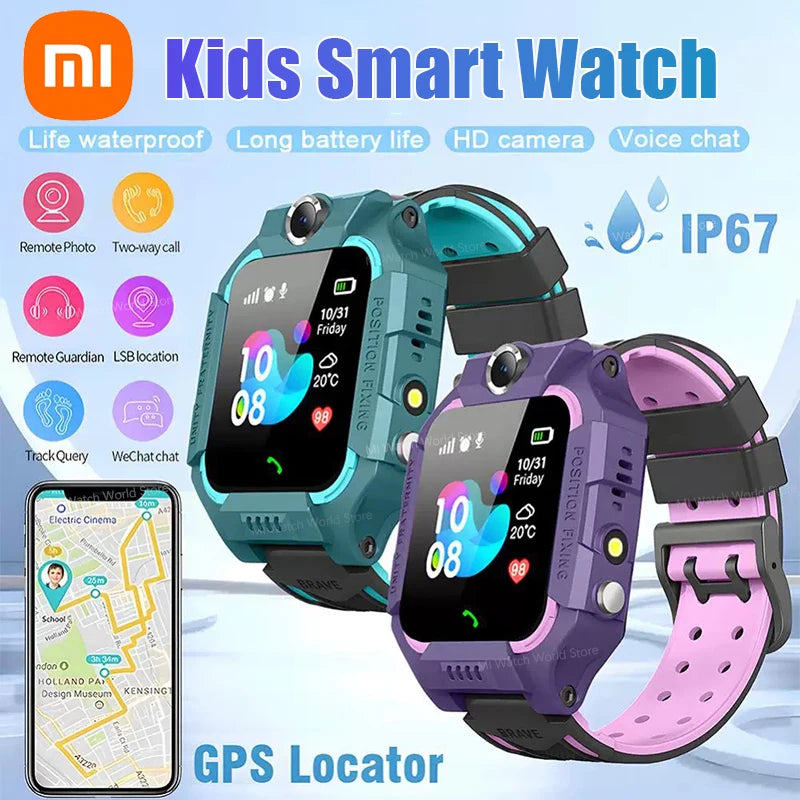
remote monitoring app + parent gps tracker app — 💡 See it in action
Real parents — real reassurance
“I used to check location every 10 minutes. Now, the watch pings and I only respond if there’s an alert. Big relief.” — Jenna, mom of two.
“The SOS test once proved our babysitter’s phone was set up correctly—saved us time and anxiety.” — Omar, father.
Mini-FAQ
-
How accurate is the location?
Most watches offer GPS accuracy within 5–20 meters outdoors; accuracy can drop indoors or in dense urban areas. Use Safe Zones with sensible radiuses to avoid false alerts.
-
Does the watch need a data plan?
Some models require a SIM/data plan for real-time tracking. Others work via Bluetooth when nearby. Choose based on how often you need live updates away from Wi-Fi.
-
What if the watch goes missing?
Use last known location, trigger a sound on the watch, and call local contacts immediately. Labeling the device inside the strap increases chance of return.
Final checklist before you close this tab
- Charge the watch and activate the SIM (if required).
- Install and log into the remote monitoring app on your phone.
- Set Safe Zones, emergency contacts, and test SOS once.
- Schedule weekly checks and keep guardians updated.
With the right setup, a remote monitoring smartwatch becomes less of a gadget and more of a tiny guardian—one that helps you trade low-level stress for fast reassurance and safer routines. Start with the steps above, test often, and adjust settings to your family’s rhythm.
Pillar Article: How to Track My Child Safely: A Practical Parent’s Step-by-Step Guide
Other Related Articles:
- Touchscreen Smartwatch for Kids: Easy Tips to Help Them Use It Independently
- How SOS Button Works on Kids Watches and How to Teach Your Child to Use It
- IP67 Waterproof Kids Watch Review: Top Safe Picks for Everyday Play
Explore More: